The Ultimate Guide to Building Your First PC in 2026
The Ultimate Guide to Building Your First PC in 2026
Building your own PC sounds intimidating. It is not. If you can follow instructions and plug in cables, you can build a PC. It is basically expensive LEGO for adults.
This guide assumes you know absolutely nothing. We will cover every component, what it does, how to choose one, and exactly how to put it all together.
Why Build Instead of Buy?
PC components laid out on a desk before assembly: motherboard, CPU, GPU, RAM, SSD, power supply, and case
| Factor | Pre-Built PC | Custom Build |
|---|---|---|
| Price | $800-1200 for mid-range | $600-900 for same performance |
| Component quality | Cheap PSU, RAM, storage | You choose every part |
| Upgradability | Often limited | Fully upgradable |
| Warranty | Single warranty | Individual part warranties |
| Satisfaction | Unbox and use | "I built this" feeling |
| Learning | None | Understand how computers work |
You typically save 15-25% by building yourself, and you get better quality components because you are not paying for the manufacturer's margin on cheap parts.
The Components (What You Need)
1. CPU (Central Processing Unit) -- The Brain
The CPU does all the thinking. It runs your programs, processes your data, and determines overall system performance.
For gaming and general use in 2026:
| CPU | Cores/Threads | Best For | Price Range |
| --- | --- | --- | --- |
| AMD Ryzen 5 7600 | 6/12 | Best value gaming | $180-220 |
| AMD Ryzen 7 7700X | 8/16 | Gaming + streaming/editing | $280-320 |
| Intel Core i5-14600K | 14 cores | Best Intel value | $250-300 |
| AMD Ryzen 5 8600G | 6/12 | Budget build with integrated graphics | $200-240 |
For most people: The Ryzen 5 7600 is the sweet spot -- excellent gaming performance at a great price.
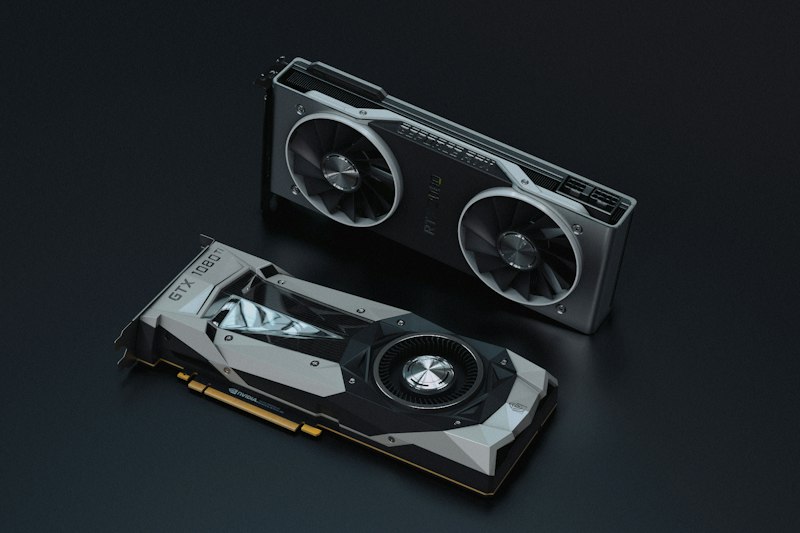
2. GPU (Graphics Card) -- The Visuals
The GPU renders everything you see on screen. For gaming, this is the most important component.
Current best value GPUs:
| GPU | VRAM | Performance Tier | Price Range |
| --- | --- | --- | --- |
| NVIDIA RTX 4060 | 8GB | 1080p High/Ultra | $280-320 |
| AMD RX 7600 XT | 16GB | 1080p Ultra | $260-300 |
| NVIDIA RTX 4060 Ti | 8GB/16GB | 1440p High | $380-450 |
| AMD RX 7700 XT | 12GB | 1440p High | $350-400 |
Budget tip: The RX 7600 XT offers the best value with 16GB VRAM -- future-proofing against games that need more memory.
3. Motherboard -- The Backbone
The motherboard connects everything together. Choose one that matches your CPU socket.
What to look for:
- •Socket type: Must match your CPU (AM5 for Ryzen 7000, LGA 1700 for Intel 13th/14th gen)
- •Form factor: ATX (full size), Micro-ATX (smaller), Mini-ITX (tiny)
- •RAM slots: 2 or 4 slots
- •M.2 slots: For NVMe SSDs (at least 1, preferably 2)
- •USB ports: Enough for your needs
Budget pick: Any B650 (AMD) or B760 (Intel) motherboard from MSI, ASUS, or Gigabyte. $100-150.
4. RAM (Memory) -- Short-Term Storage
RAM holds data your CPU is actively using. More RAM means more multitasking.
In 2026:
- •16GB DDR5 is the minimum for gaming
- •32GB DDR5 is recommended for gaming + streaming/editing
- •Speed: DDR5-5600 or DDR5-6000 is the sweet spot
- •Always buy in pairs (2x8GB or 2x16GB) for dual-channel performance
Budget pick: 32GB (2x16GB) DDR5-5600 kit -- around $80-100.
5. Storage -- Where Files Live
| Type | Speed | Best For | Price (1TB) |
| --- | --- | --- | --- |
| NVMe SSD (Gen 4) | Very fast (5000+ MB/s) | OS + games + apps | $60-80 |
| SATA SSD | Fast (500 MB/s) | Bulk storage | $50-60 |
| HDD | Slow (150 MB/s) | Mass storage (movies, backups) | $35-45 |
Recommendation: 1TB NVMe SSD for your operating system and games. Add a 2TB HDD later if you need more space.
6. Power Supply (PSU) -- The Heart
The PSU delivers electricity to everything. Do not cheap out on this. A bad PSU can damage every other component.
Rules:
- •80+ Bronze efficiency minimum (Gold or higher is better)
- •650W for most builds, 750W if you have a power-hungry GPU
- •Fully modular if budget allows (only attach the cables you need)
- •Buy from reputable brands: Corsair, Seasonic, EVGA, be quiet!
Budget pick: Corsair RM650 or equivalent -- around $80-100.
7. Case -- The Housing
The case holds everything and determines airflow, aesthetics, and noise.
What to look for:
- •Airflow: Mesh front panel is ideal
- •Size: Must fit your motherboard (ATX case for ATX motherboard)
- •Fans: At least 2 included (1 front, 1 rear). 3+ is better
- •Cable management: Space behind the motherboard tray for routing cables
Budget pick: Any well-reviewed mid-tower ATX case with mesh front -- $60-90.
The Budget Build ($700)

Completed PC build with RGB lighting visible through a glass side panel, sitting on a desk with monitor, keyboard, and mouse
Here is a complete build list for under $700 that handles 1080p gaming at high settings:
| Component | Pick | Price |
|---|---|---|
| CPU | AMD Ryzen 5 7600 | $190 |
| GPU | AMD RX 7600 XT 16GB | $280 |
| Motherboard | MSI PRO B650M-A WiFi | $120 |
| RAM | 32GB DDR5-5600 (2x16GB) | $85 |
| Storage | 1TB NVMe SSD (Gen 4) | $65 |
| PSU | 650W 80+ Bronze (modular) | $70 |
| Case | Mid-tower mesh ATX | $70 |
| Total | $680 |
This build runs:
- •Fortnite, Valorant, Apex Legends at 100+ FPS (1080p High)
- •Cyberpunk 2077, Starfield at 60+ FPS (1080p High)
- •Video editing and streaming capable
- •Upgradable to higher-end GPU later
The Build Process (Step by Step)
Before You Start
- •Clear a large, clean table (not carpet -- static electricity can damage components)
- •Have a Phillips screwdriver (that is the only tool you need)
- •Watch one build video on YouTube first to visualize the process
- •Keep all manuals handy -- especially the motherboard manual
Step 1: Install CPU
- 1Open the CPU socket latch on the motherboard
- 2Align the golden triangle on the CPU with the triangle on the socket
- 3Gently place the CPU in -- it drops in with zero force
- 4Close the latch (this takes some pressure -- that is normal)
Step 2: Install CPU Cooler
- 1If using the stock cooler, it comes with pre-applied thermal paste
- 2Place the cooler on top of the CPU
- 3Screw it in using an X pattern (top-left, bottom-right, top-right, bottom-left)
- 4Plug the fan cable into the "CPU_FAN" header on the motherboard
Step 3: Install RAM
- 1Open the clips on the RAM slots
- 2Align the notch on the RAM stick with the slot
- 3Press firmly until both clips snap shut
- 4If using 2 sticks, use slots 2 and 4 (check your motherboard manual)
Step 4: Install SSD
- 1Find the M.2 slot on your motherboard
- 2Insert the SSD at a 30-degree angle
- 3Push it down flat and secure with the screw
Step 5: Prepare the Case
- 1Remove both side panels
- 2Install the motherboard I/O shield (comes with the motherboard)
- 3Install the standoffs if they are not pre-installed
Step 6: Install Motherboard in Case
- 1Lower the motherboard into the case, aligning with standoffs
- 2Screw it in (do not overtighten)
- 3Connect the front panel cables (power button, USB, audio) -- this is the fiddliest part. Refer to your motherboard manual.
Step 7: Install PSU
- 1Place the PSU in the bottom of the case (fan facing down if your case has a vent)
- 2Screw it in from the back
- 3Route the cables: 24-pin motherboard, 8-pin CPU, PCIe for GPU
Step 8: Install GPU
- 1Remove the appropriate PCIe slot covers from the back of the case
- 2Insert the GPU into the top PCIe x16 slot
- 3Press until it clicks
- 4Screw it into the case
- 5Connect PCIe power cables from the PSU
Step 9: Cable Management
- 1Route all cables behind the motherboard tray
- 2Use zip ties or velcro straps to bundle cables
- 3Make sure no cables are touching fans
Step 10: First Boot
- 1Connect monitor, keyboard, and mouse
- 2Plug in the power cable
- 3Press the power button
- 4Enter BIOS (press Delete or F2 during boot)
- 5Verify all components are detected (CPU, RAM, storage)
- 6Install Windows from a USB drive
Post-Build Setup
Install Windows
- 1Download the Windows 11 installation media from Microsoft
- 2Use a USB drive (8GB+) to create a bootable installer
- 3Boot from the USB drive and follow the prompts
- 4You can use Windows without activating -- you just get a watermark
Install Drivers
- 1GPU drivers from nvidia.com or amd.com -- this is the most important one
- 2Motherboard drivers from the manufacturer's website (chipset, LAN, audio)
- 3Windows Update will handle most other drivers
Enable XMP/EXPO
Your RAM runs at a default slow speed until you enable the XMP (Intel) or EXPO (AMD) profile in BIOS. This is free performance -- do not skip it.
Troubleshooting Common Issues
| Problem | Likely Cause | Fix |
|---|---|---|
| PC does not turn on at all | PSU switch off, power cable loose | Check PSU switch and all power connections |
| Fans spin but no display | GPU not seated, monitor cable wrong port | Reseat GPU, plug monitor into GPU not motherboard |
| Only one RAM stick detected | RAM not fully clicked in | Reseat RAM with firm pressure until both clips snap |
| PC turns on then off immediately | CPU cooler not mounted properly | Remount cooler, check thermal paste |
| Boot loop | RAM speed too high | Reset BIOS by removing CMOS battery for 30 seconds |
The most common mistake is a cable not being fully plugged in. If something does not work, check every connection before panicking.
Is It Worth It?
Absolutely. You get a better computer for less money, you understand how it works, and you can upgrade individual parts instead of replacing the whole thing. Your first build takes 2-3 hours. Your second takes 45 minutes.
Want to test your new build's internet speed? Try our Internet Speed Test tool. For more tech tips, check out our keyboard shortcuts guide.